https://winbuzzer.com/2026/02/12/microsoft-rolls-out-bluetooth-le-audio-windows-11-xcxwbn/
Microsoft Rolls Out Bluetooth LE Audio for Windows 11 PCs
#Windows11 #BluetoothLEAudio #Microsoft #Bluetooth #Auracast #Accessibility #SharedAudio
https://winbuzzer.com/2026/02/12/microsoft-rolls-out-bluetooth-le-audio-windows-11-xcxwbn/
Microsoft Rolls Out Bluetooth LE Audio for Windows 11 PCs
#Windows11 #BluetoothLEAudio #Microsoft #Bluetooth #Auracast #Accessibility #SharedAudio

https://winbuzzer.com/2026/02/13/microsoft-restores-movable-taskbar-windows-11-2026-xcxwbn/
Microsoft to Restore Movable Taskbar on Windows 11 in 2026
#Windows11 #Microsoft #Taskbar #SoftwareUpdates #WindowsInsiderProgram

https://winbuzzer.com/2026/02/12/microsoft-store-cli-command-line-tool-xcxwbn/
Microsoft Launches Store CLI for App Management via the Command Line
#MicrosoftStore #Microsoft #Windows10 #Windows11 #Windows #StoreCLI #WinGe

Avalue EMX-PTLP – A thin mini-ITX motherboard powered by up to an Intel Core Ultra 7 358H Panther Lake-H SoC
Windows 11: Taskleiste bald wieder in alle Richtungen verschiebbar https://www.computerbase.de/news/betriebssysteme/windows-11-taskleiste-bald-wieder-in-alle-richtungen-verschiebbar.96137/ #windows11
🚨 Kritiek risico ontdekt in Windows 11 Kladblok! Ontdek nu hoe je je kunt beschermen. #CyberVeiligheid #Windows11
https://itinsights.nl/cybersecurity/windows-11-kladblok-een-onverwacht-en-urgent-risico/
🎉 Gli utenti trionfano! Windows 11 reintroduce una delle funzionalità più apprezzate. Aggiornamento emozionante in arrivo! 💻🚀 #Windows11 #UserVictory
🔗 https://www.tomshw.it/hardware/windows-11-riporta-le-funzioni-classiche-della-barra-2026-02-13
Cumulative Updates: February 10th, 2026
Windows 11 will allow users to move and resize their taskbar!
#Windows #Microsoft #TechNews #TechUpdates #MicrosoftWindows #Windows11 #Computers #Laptops
Windows 11 will let users move and resize the taskbar
This year, Microsoft promised that they’ll be improving user experience on Windows 11 by fixing most of the problems and addressing users’ complaints. This was after a huge backlash that happened on November 2025 as a result of the aggressive Microsoft Copilot AI assistant push with advertisements posted on social media.
One of the changes that will be made this year is that Microsoft will finally allow you to move your taskbar again to the top, the left, and the right. This ensures that users will have an option to move their taskbar, just like how they used to do it earlier on older Windows versions, such as XP, 7, and 10.
Additionally, Windows 11 will allow you to resize your taskbar to make more items fit, just like how you used to do it in earlier Windows versions going back to Windows 95.
Windows 11 was initially released on 2021 to give you a modern look to your desktop after 6 years since the first Windows 10 release. People heavily criticized the OS for limiting options and for various other complaints, such as the inability to move and resize the taskbar.
As this year goes, we’ll see what will Microsoft do to fix some of the most common pain points in Windows 11.
#microsoft #MicrosoftWindows #news #Tech #Technology #update #Windows #Windows11

Was soll der ganze #openclaw Hype? So was ähnliches versucht doch #microslop mit #windows11 #copilot und #recall seit locker einen Jahr. Wir waren uns doch einig, das es nicht das gelbe vom Ei ist.
Ctrl+click should not be a jump-scare.
Windows 11 Notepad’s Markdown links could launch file:// executables or even ms-appinstaller:// with no Windows warning; Microsoft patched it in Feb 2026 Patch Tuesday (CVE-2026-20841) and now warns on non-http(s) links. Who thought Notepad needed claws? 😼
2026年2月のWindows Updateを適用したら再び設定→システム→バージョン情報からシステムの詳細設定を呼び出せなくなったため、TiVeToolで旧設定画面を復活させた。
vivetool.exe /disable /id:59265307
※実行後、Windows11を再起動。
sysdm.cplへのショートカットやGodModeを使う方法もある。
How to Turn Off Modern Standby in Windows 11
This guide explains how to disable Modern Standby on Windows 10 or 11, reverting to the S3 sleep mode for better compatibility with certain devices. Modern Standby saves power while connected to the internet, but some users may prefer S3 for fewer crashes and reduced power consumption. Administrative access is required for changes.https://geekrewind.com/how-to-turn-off-modern-standby-in-windows-11/


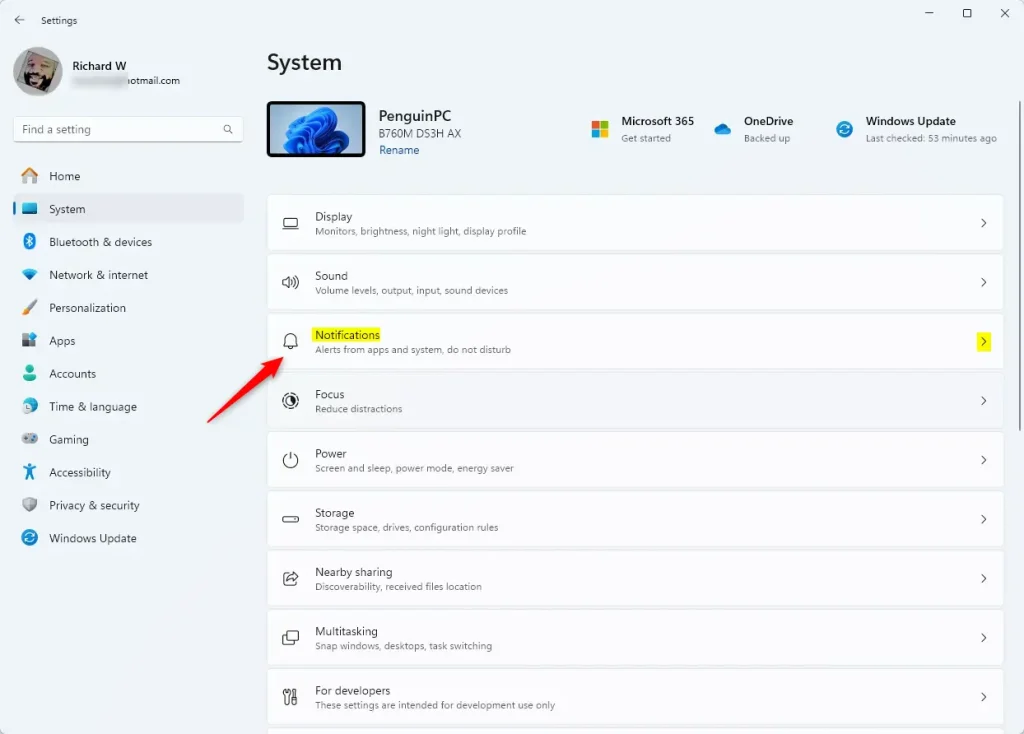
How to Set Priority Notifications for Do Not Disturb in Windows 11
Windows 11 features a Do Not Disturb mode that allows users to mute most notifications while still receiving priority alerts. Users can customize which notifications get through via Settings, ensuring important calls and reminders are noted. This mode enhances focus, provides privacy, and is easy to manage by adding or removing apps.https://geekrewind.com/how-to-set-priority-notifications-for-do-not-disturb-in-windows-11/


@jamie that's interesting. So I guess #Windows11 will be public domain soon.
Microsoft is splitting Windows 11 again: version 26H1 is a special Arm-only release for new PCs, beginning with Snapdragon X2 Elite systems. Most users may not notice, but IT and developers will. #Windows11 #ARM
https://washingtonhorizon.com/microsoft-launches-arm-only-branch-of-windows-11-for-new-snapdragon-x2-pcs/
#Windows11 #Notepad flaw let files execute silently via #Markdown links
KB5077223 #Windows11 #WindowsInsiders Build 26220.7857 version #25H2 released to Beta channel
https://www.elevenforum.com/t/kb5077223-windows-11-insider-beta-build-26220-7857-25h2-feb-12.44541/

KB5077225 #Windows11 #WindowsInsiders Build 26300.7864 version #25H2 released to Dev channel
https://www.elevenforum.com/t/kb5077225-windows-11-insider-dev-build-26300-7864-25h2-feb-12.44540/