#bloggingTools

2025-12-06

How to Enable or Disable the Falling Snow Effect on Your WordPress Blog

Have you noticed that snow is falling on some WordPress blogs? As you read the post, small flakes of snow gently drift down. Meanwhile, on other blogs, like mine, there’s no snow.

WordPress introduced the festive snowfall feature a few years ago. It only works when reading a post via the WordPress website. You won’t see it if you’re reading a post in the WordPress Reader or the Jetpack App unless you click through to the website. This time, it runs until 4th January 2026. But how do you turn the feature on or off? Easy – follow my instructions.

  • Go to your blog’s dashboard and click Settings – General.
  • Scroll down the page until you come to ‘Snow.’
  • You’ll see a box with the words ‘Show falling snow on my site until January 4th.’
Where to turn on/off falling snow on your WordPress blog
  • If you want snow to fall on your blog, tick the box. If you don’t want snow falling on your blog, untick the box.
  • Click the ‘Save Changes‘ box at the bottom of the page.
  • Ensure the changes are effective by opening one of your posts on the WordPress website.

I’m not a lover of anything moving onscreen while I’m reading, as I find it distracting. However, I know that many bloggers love the idea of gently drifting snowflakes while they read blog posts during the festive season.

The choice is yours. And now you know how to switch on or turn off snow falling on your blog.

For the above instructions, I’m using a desktop computer. The falling snow effect is only controlled through your WordPress.com dashboard, not the Jetpack mobile app.

Is it snowing on your blog? If not, do you want it to snow? Let me know why you like or dislike the idea of snowflakes drifting on WordPress blogs.

The featured image on this blog post is sourced from Pixabay. AI reviewed spelling and grammar errors.

You can follow me at the following sites.

Copyright @ 2025 hughsviewsandnews.com – All rights reserved.

#blogging #bloggingAdvice #bloggingHelp #bloggingTools #christmas #fallingSnow #howTo #snow #wordpress #wordpressHelp #wordpressTips

An image of the letter W in lots of blue badges.An image highlighting how to turn on/off the falling snow feature on the dashboard of a WordPress blog.
2025-10-24

📉 Not seeing your stats update in Grow by Mediavine? Don’t let the lag slow down your momentum—the guide shows you exactly what to check and fix so your data stays in sync.

🔗 Read the full walkthrough: izoate.com/blog/what-to-do-if-

2025-10-20

9 Important Options on Your WordPress Blog to Check Now!

I’m surprised by how many bloggers miss the opportunity of having their posts shared for free by not displaying sharing buttons on their blog posts.

Of course, some bloggers don’t want any of their posts shared, but they tend to be in the minority.

In today’s digital age, having social sharing buttons on your blog is crucial for expanding your reach and boosting engagement. This post will guide you through the steps to add sharing buttons to your WordPress blog and emphasise the benefits of including them.

For the purpose of this guide, I’m using an iMac desktop computer.

To add and edit sharing buttons on your WordPress.com blog, follow these steps:

  • Log in to your WordPress.com account.
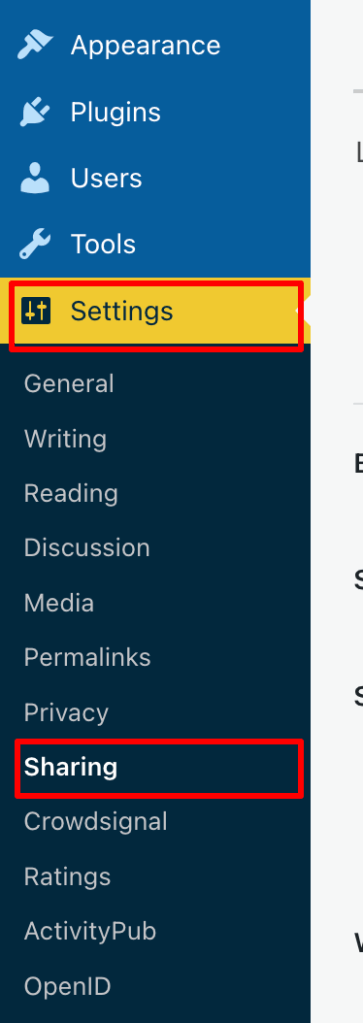
  • From your dashboard, navigate to ‘Settings‘ and select ‘Sharing.’
Click the ‘Sharing’ option.

You’ll be taken to the ‘Sharing Options‘ page of your blog, where you will see a variety of options that include –

  • Available services
  • Enabled services
  • Live preview
  • Button style
  • Sharing label
  • Show buttons on
  • WordPress.com Likes are
  • WordPress.com Reblog button
  • Comment Likes are

Let’s have a look at each of these options and what they mean.

Available services – This displays any sharing buttons not currently visible on your blog. To add an available sharing button, drag it to the ‘Enabled services‘ box and click the ‘Save‘ button at the bottom of the page.

There is also an ‘Add a new service‘ link that, when clicked, allows a user to add new sharing services that are not currently available on WordPress.

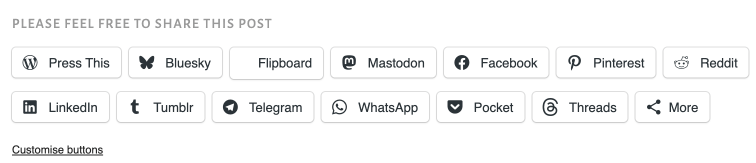
Enabled Services – This section shows all the sharing buttons currently on display on your blog. Here’s an image of the sharing buttons available on my blog posts and pages.

Sharing buttons on Hugh’s Views And News blog.

Notice the ‘Customise buttons‘ link under the buttons. Click this to be taken straight to the ‘Sharing options‘ page of your blog.

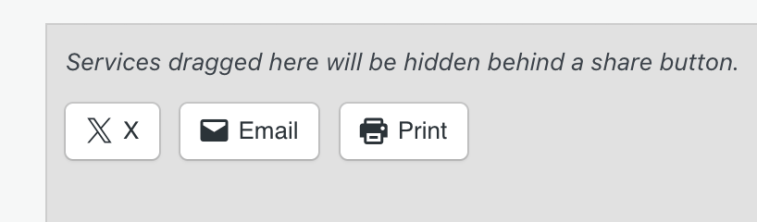
You may also have noticed the ‘More‘ sharing button. This is where you can group certain sharing buttons under one button. To do this, simply drag the buttons you want to hide to the ‘Services dragged here will be hidden behind a share button‘ box. On my blog, the ‘More‘ button includes sharing buttons for ‘X’, ‘Email’ and ‘Print.’

Hide sharing buttons behind one button.
  • To rearrange the order of how sharing buttons display on your blog, simply drag the buttons to the order you want them in. Remember to save any changes.
  • To remove a sharing button from your blog, drag the button to the ‘Available services‘ section and click the ‘Save‘ button at the bottom of the page.

Live preview – This section shows how the sharing buttons display on your blog.

Button style – There are four options to choose from.

  • Icon + Text
  • Icon only
  • Text only
  • Official buttons

On my blog, I have chosen sharing buttons to show ‘Icon + Text’ as this helps those using speech software know which sharing button is which. If you use ‘Icon only,’ speech software won’t know what each sharing button is.

Sharing label – This section allows users to change and display their own message above their sharing buttons. Simply add the text you want and click the save button.

Show buttons on – Choose where on your blog you want sharing buttons to appear. Place a tick next to the options and click the save button.

Choose where you want the sharing buttons to display on your blog.

WordPress.com Likes are – This is where you can turn off (or on) the ‘Like’ button on blog posts and pages.

WordPress.com Reblog button – This is where you can turn off (or on) the reblog button on blog posts and pages.

Comment Likes are – This is where you can turn off (or on) the availability of a ‘like’ button on comments on your blog.

  • Once you’ve added sharing buttons to your blog, remember to always test them. The best way to do this is to visit one of your blog posts to ensure the sharing buttons appear as intended. Click on each button to check that it links correctly to the respective social media platforms.

Top tip: If you have an account on a social media platform, remember to ensure that there is a sharing button for that platform on your blog. You don’t need to remove share buttons where you don’t have an account, as other bloggers and readers may want to share your posts and pages to their own social media accounts. For example, I don’t have a Facebook account, but I allow visitors to my blog to share my posts and pages on their Facebook accounts.

But, at the end of the day, it’s your decision as to how many sharing buttons you want to display on your blog.

Advantages of Having Sharing Buttons on Your Blog

  1. Increased Visibility: Sharing buttons allow visitors to easily share your content with their networks, leading to greater visibility and new readers.
  2. Enhanced Engagement: When users share your posts, it engages their followers, creating conversations and interactions around your content.
  3. Improved SEO: Social shares can boost your search engine rankings. Search engines often view shared content as more credible and relevant.
  4. Brand/Blog Awareness: Every share increases exposure for your brand/blog, helping you capture a larger audience over time.
  5. Traffic Boost: Each share potentially drives more traffic back to your blog, increasing your overall reach and influence in your niche.
  6. User-Friendly: A streamlined sharing process enhances the user experience, encouraging visitors to interact more with your content.

By integrating sharing buttons into your WordPress blog, you not only make it easier for readers to share your posts but also create new opportunities for engagement and growth.

Summary:

  • Many bloggers miss out on free content-sharing opportunities by not displaying sharing buttons. These buttons are crucial for expanding reach and boosting engagement.
  • It’s easy to add and display sharing buttons on your WordPress blog. Follow the guide in this post.
  • Ensure you deal with each option available to you on the ‘Sharing options‘ page of your blog.
  • There are many advantages of displaying sharing buttons on your blog, including increased visibility, enhanced engagement and improved SEO ratings.
  • If you have a social media account, ensure you display a sharing button for that account on your blog.
  • Add as many sharing buttons as you like, even for those social media platforms where you don’t have an account.
  • Test that the sharing buttons are working correctly at least once every few months.
  • Make the most of the other options available on the ‘Sharing options’ page of your blog, such as switching on/off the like button and whether or not you want a ‘Reblog’ button to show.

I want to open up the conversation and hear from you. What social media platforms do you find most effective for sharing your blog content? Have you noticed an increase in your blog traffic after adding sharing buttons? How much of a difference has it made? Have you experimented with the different button styles? Which one do you think looks best on your blog? If you could add one feature to the sharing buttons on your blog, what would it be and why?

Layout, content, settings, and format might differ on self-hosted blogs.

Follow Hugh on social media. Click the buttons below.

The featured image on this blog post is taken from Pixabay. AI checked spelling and grammar mistakes. Images, which were taken from screenshots of my blog, were created by me.

Copyright @ 2025 hughsviewsandnews.com – All rights reserved.

#Blogging #BloggingAdvice #BloggingHelp #BloggingQuestions #BloggingTools #HowTo #SharingButtons #SocialMedia #WordPress #WordPressHelp #WordPressTips

An image of the letter W in lots of blue badges.An image that highlights Settings and Sharing on the dashboard of a WordPress blog.An image showing the sharing buttons on a WordPress blogAn image showing hidden sharing buttons behind a 'More' button on a WordPress blog.
2025-10-13

Where To Legally Source Amazing Images For Your Blog Posts

The majority of bloggers understand the importance of visual content. Posts that include images receive up to 70% more traffic than those that contain no images. However, there is one major pitfall associated with using images in blog posts, which I will address shortly.

Images not only enhance the appeal of our posts but also help us communicate our messages more effectively. However, a key question remains: where do you source your images and photographs for your blog posts?

Are you breaking the law by using images that are not your own?

I’ve become concerned by the increasing number of bloggers using images or photos without giving credit to the owner or specifying the source of the image. Many of these images have been obtained from the internet; some are copyrighted and not freely available for use. Bloggers using these images and photos are breaking the law.

Some bloggers believe they will never be caught using copyrighted images and photos. They argue that their blog is too small for anyone to care. Nobody will come after them. However, I am aware of a few bloggers who have been prosecuted and fined for downloading and using copyrighted images and photos on their blogs.

It may also not have crossed the minds of some bloggers that there are serious consequences for using images and photos to which they do not have the rights in their posts. Hence, this post.

Where do bloggers get their images from?

Some bloggers, including myself, use stock photo websites that provide images and photos for free. However, even some of these can incur costs if the images are only free to use for a limited time or require the user to give full credit to the owner, along with a link to where the image was sourced. Always read the small print before using any images or photos that are not your own.

Here’s an example. The following image is from Pixabay, a website that offers a wide range of free-to-use images and photos.

Image by Gerd Altmann from Pixabay

Notice that I have given credit to the person who created the image and where I obtained it from. The image is free to use, and although the content licence summary states ‘Use Content without having to attribute the author (although giving credit is always appreciated by our community!).’ I always include an attribute along with links to the source of the image.

Always check the content licence summary before downloading an image or photo from the internet and using it in a blog post. Ensure you follow any rules around the use of the image.

The perils of using copyrighted images

While it might be tempting to use appealing images from the internet, downloading and using copyrighted images and photos can result in serious legal trouble. Here are some risks to bear in mind:

Legal Consequences

Using copyrighted images without permission can lead to copyright infringement, which may result in potential legal action against you. This may result in hefty fines, the removal of your post, or even the closure of your blog, not to mention damage to your reputation.

Image Attribution Challenges

Even when images are shared with the intention of being used by others, understanding the precise attribution requirements can be confusing. Each source may have different rules, and failing to follow them can put you at risk.

Quality Concerns

Some free or low-cost images can often be of lower quality, which can damage the professionalism of your blog. Conversely, high-quality images usually come at a price, highlighting the importance of responsible sourcing. However, they can eat into your media space unless you reduce the size, which may then affect the quality.

The Perils of Reblogging

If you reblog a post of another blogger that contains images and photos, don’t think you are safe from prosecution if any of those images or pictures are copyrighted. You, too, could be fined for resharing images or photos that are not free to use, even though all you did was reblog the post. If you are not absolutely certain where those images and photos originated and whether they are free to use, don’t reblog the post.

Availability of Alternatives

Fortunately, there are many alternatives to using copyrighted images. Consider the following options:

  • Stock Photo Websites: Sites like Unsplash, Pexels, and Pixabay offer free images that are often licensed for commercial use.
  • Creative Commons: Use images that offer a Creative Commons license, ensuring you follow any stipulations regarding attribution or modification.
  • Original Content: Creating your own images can be the most reliable way to ensure your visuals are unique and free of legal concerns.
  • AI: Make use of the AI image creator on WordPress. It’s easy to use, although it doesn’t always come up with something relevant, especially if you don’t provide a clear enough description of what you want it to create, but I’ve found it very useful.

Summary:

In conclusion, sourcing images for your blog posts is an essential aspect of content creation that warrants careful consideration. However, be aware and always check if images and photos that do not belong to you are free to use!

The simplest way to avoid copyright issues with images and photos is to always use your own.

Please read this important yet alarming post by Jacqueline Lambert, ‘Bloggers Beware The Copyright Trolls – Even If You Use Royalty-Free Images,’ about a scam targeted at bloggers who use royalty-free images.

I want to open up the conversation and hear from you. What resources do you rely on for images? Do you have any favourite stock photo sites, or do you prefer to create your own visuals? Have you tried the WordPress AI image creator? What did you think of the images it created? Let’s discuss the various avenues we can explore to source images, and perhaps you’ll discover new options along the way.

The featured image in this blog post is taken from Pixabay. AI checked spelling and grammar mistakes.

Click the buttons below to follow Hugh on Social Media

Copyright @ 2025 hughsviewsandnews.com – All rights reserved.

#ai #aiInBlogging #blogging #bloggingAdvice #bloggingHelp #bloggingQuestions #bloggingTools #copyright #helpWithBlogging #images #questionsAboutBlogging

An image showing lots of colourful photos and imagesAn image of a desktop computer keyboard with the 'Copyright' trademark on it.
Océane 🏳‍⚧️ oceane@gotosocial.social
2025-09-30

OK j’ai passé une partie de la semaine dernière à lire de la documentation LaTeX, à me lancer dans une crise existentielle, à trouver un nouveau pseudo + éventuellement à accepter mon identité de personne non-binaire, à me mettre en retard de plus d’une semaine sur une fiche de lecture à rendre, à faire planter mon seul terminal Linux, à concevoir (dans ma tête) une infrastructure de blog pérenne™, à tenter d’installer Alpine Linux, MX Linux, NetBSD, et OpenBSD, sur un ordinateur défectueux acheté dans un destockage d’entreprise, et à accepter sur le principe les conséquences du fait que j’avais survécu à un #génocide dématérialisé et hybride, et que mon travail était une responsabilité collective.

Cet après-midi, j’ai donc pris mes responsabilités et contacté une camarade pour lui demander de l’aide sur mon téléphone, et éventuellement lui emprunter un ordinateur d’ici la réception de mon Framework 12.

Bref : mes billets seront directement publiés sur IPFS en tant que documents PDF, et référencés avec #Keyoxide en tant que preuves de type lien.

Cela signifie que si votre navigateur a le plugin #IPFS, il fetchera automatiquement mes billets au format PDF… et, en principe, qu’il les partagera tous.

Mes billets seront convertis du format LaTeX au format HTML avec NoWeb, et peut-être convertis au format GemText pour un export #Gemini avec un fork de Pandoc ou Skribilo (seuls les liens ayant une option [GemText=(...),] seront exportés). Ils seront accessibles à l’URL miroir.blog.tld sauf que je ne suis pas encore sûr·e de l’URL vu que je ne suis pas sûre de vouloir encore m’appeler Océane. Je demanderai conseil autour de moi, je garderai peut-être « Océane » comme pseudo (ou comme prénom) donc je renouvellerai le nom de domaine océane.fr, en tout cas pour l’année suivante.

Je pourrai éventuellement traiter océane.fr comme le miroir officiel de la liste de preuves Keyoxide vers laquelle redirigera un autre nom de domaine, mais je pourrai aussi utiliser un SLD dans la grande tradition du web 3 lol. (Je n’ai pas l’intention de m’investir dans les cryptomonnaies, mais ça peut parler à certaines personnes et faire les ponts entre libertarianisme et anarchisme – je veux partager des ressources au plus grand monde possible, et dire « Twitter est co-responsable d’un génocide » à des libertarien·nes me branche aussi – le FQDN de mon miroir n’a pas de raison particulière de changer le contenu de mes billets.)

Je compte partager mes modifications avec la communauté de rédaction de l’outil utilisé et mettre tout le reste en programmation lettrée avec #NoWeb. Mon éditeur de texte (Emacs) contiendra un script local (au répertoire de mon blog) de pré-remplissage des documents .tex basé sur un script Perl extrayant les éléments de configuration lettrée du document le plus récent dans l’arborescence git (par date de commit), et la syntaxe interprétée sera exportée dans un dossier /tmp/ci-blog/. De la sorte, à quelques exceptions triviales près, mon blog sera entièrement reproductible, en sus du code source de mes documents, accessibles dans mon projet git.

De la sorte, si un serveur OpenPGP devait être partagé sur IPFS, mon blog survivrait littéralement (en théorie et dans le cas de colonies extraterrestres) à une vitrification totale et irrémédiable de la planète Terre. La disparition ponctuelle de mon miroir ne serait même pas à proprement parler une perte car elle stimulerait l’apparition de pairs partageant mes documents IPFS.

J’ai réalisé ce travail grâce au défi #100DaysToOffload (lien), dans Emacs, en configurant et utilisant un système de références académiques pendant un an. cc #ToutEstMieuxAvecEmacs

PS : merci à mon mécène LiberaPay, je suis obligée de me bouger à cause de lui 😅 je n’en demandais pas tant donc je suis très touchée.

#Blog #Blogging #BloggingTools #BloggingSoftware #CIBlog #CIBlogging

Dr. Chetan Dhongadedr_chetan
2025-09-21

Ever felt lost while choosing between WordPress, Joomla, Drupal, or even Wix? 🤯 Picking the wrong Content Management System (CMS) can slow your site, hurt your SEO, and drain your budget.

This blog helps you find the best CMS for your needs — whether you’re running a blog, a business site, or an e-commerce store. 🚀

drchetandhongade.com/web-desig


Marya The BeauTravelerthebeautraveler@flipboard.social
2025-09-06

💻✈️ From hobby to income! The exact tools this travel blogger uses to make money online 💰📸

Read more: flip.it/78s60Q

#blogging #bloggingtips #blogger #bloggertips #bloggingtools #digitalnomad

Nicole Myersastridsdreamspace
2025-08-20

Tired of clunky SEO plugins just to add internal links? Me too. Here’s the dream internal linking plugin I wish existed—smart, simple, visual, neurodivergent-friendly, and maybe even with cat mode.

dreamspacestudio.net/the-inter

Debs | Miles, Maps & Memoriesdebseed@mastodon.world
2025-05-26

@LLMs I use Chatgpt for blogging, so yep - searching and structuring chats is a big want for me.

It kept forgetting my 'voice' and themes I want to weave in my posts, so I've asked it to search it's memory and our interactions and give me text to put infront of each chat to remind it. I've tweaked it and saved it as a Google Keep note to copy and paste in. Hoping that works

#BloggingTools #WritingWorkflow #DigitalWriting #AIWritingAssistant #CreativeProcess #FediverseWriters

Batman :batman:em@qoto.org
2025-05-11

Starting a blog but unsure where to begin?
Our new guide breaks down the best blogging platform choices for beginners, writers, and money-makers.
Get tips, tools, and real insight:
🔗 emtechbd.xyz/2025/05/best-blog

#Blogging #BestBloggingPlatform #WritersOfMastodon #BloggingTools

EM TECH BD :verified:emtechbd@flipboard.social
2025-05-11

Starting a blog but unsure where to begin?
Our new guide breaks down the best blogging platform choices for beginners, writers, and money-makers.
Get tips, tools, and real insight:
🔗 emtechbd.xyz/2025/05/best-blog

#Blogging #BestBloggingPlatform #WritersOfMastodon #BloggingTools

2025-04-24

'Blogging tooters!

If you have a 'blog, what do you do for comments? Do you have them? How are they implemented? Do you moderate them yourself?

I'd like to have a comment section on mine. It's a static site (Github pages), FWIW.

Thanks!

#blog #blogging #BloggingTools

2025-03-27

Harnessing AI in Blogging: Benefits, Challenges, and Personal Insights

In today’s digital landscape, artificial intelligence (AI) is emerging as a progressively popular tool across various domains, including blogging.

WordPress integrated AI into its platform a few years ago, joining numerous other sites that now offer AI as an option.

I have witnessed many bloggers who are afraid of what AI can do, but I have also seen many bloggers embrace AI and utilise it for the benefits it can offer.

However, like any tool, there are pros and cons to consider.

What are your thoughts about using AI to blog?

This post examines the advantages and disadvantages of integrating AI into your blogging process.

Pros of Using AI in Blogging

1. Improved Efficiency

AI tools can streamline the writing process. From generating topic ideas to creating content drafts, AI can save bloggers considerable time, allowing them to focus on refining their unique voice and style.

This may prove beneficial to bloggers who publish daily, but those bloggers who publish less often may not see any benefit.

2. Enhanced Creativity

AI can assist in brainstorming and generating creative content ideas. With access to vast databases and algorithms that identify trends, AI can offer fresh perspectives and innovative suggestions.

However, some consider this to be plagiarism, a term that specifically refers to taking another person’s work—words, ideas, and so forth—and presenting it as one’s own without proper attribution.

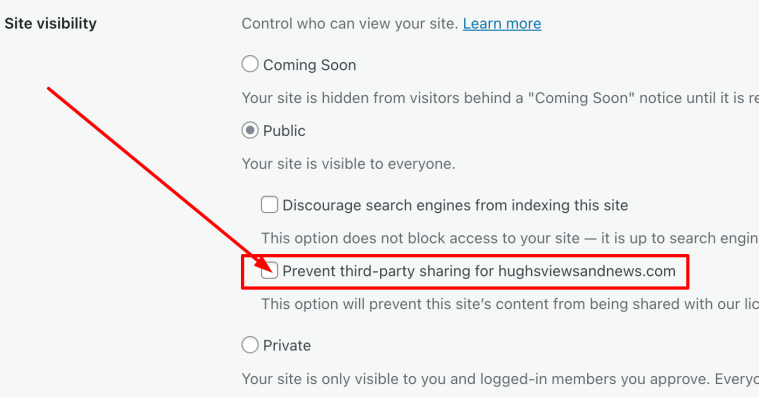
Did you know that WordPress users can choose to stop their blog’s content from being shared with a WordPress-licensed network of content and research partners, including those that train AI models? To achieve this, navigate to your blog’s dashboard, select Settings—Reading, and tick the box next to ‘Prevent third-party sharing...’.

Tick this box to stop AI from using your blog content.

3. SEO Optimization

Numerous AI-based tools can analyse keywords and optimise content for search engines. They offer insights into the types of content that rank well, assisting bloggers in enhancing their visibility and reach.

I utilise AI to generate titles for blog posts when I struggle to think of a captivating title that will entice readers to read and engage further. Consequently, I have observed a significant increase in engagement and visitors to my blog.

4. Data-Driven Decisions

AI can analyse reader behaviour and feedback to inform content strategy. By understanding what resonates with the audience, bloggers can create more targeted and engaging content.

However, your WordPress statistics can also provide this information by analysing the stats of posts that receive higher engagement. Typically, you’ll observe a correlation between those posts that engage readers more and those that attract less engagement.

5. Consistency

AI can assist in maintaining a consistent posting schedule by automating aspects of the content creation process. This guarantees that the blog stays active and engaging for readers.

It is widely known that blogs which publish on a schedule tend to retain readers; however, it is unwise to publish content merely for the sake of it. There is nothing wrong with occasionally missing the publication of a blog post or taking a break from blogging. Nevertheless, if you choose to take the latter route, ensure that you inform your readers.

Cons of Using AI in Blogging

1. Lack of Personal Touch

AI-generated content often lacks the emotional depth and personal touch that human writers naturally provide. Readers tend to connect more readily with personal stories and unique experiences that AI is unable to replicate.

If you let AI compose all your posts, you’ll soon notice a decline in visitors and engagement.

2. Quality Control

While AI can generate content rapidly, the quality does not always meet high standards. Bloggers must review and edit AI-generated content to ensure it aligns with their voice and is factually accurate. Remember, it is your blog, not that of AI. Your voice matters.

3. Dependence on Technology

Over-reliance on AI can hinder writing skills. Bloggers may grow overly dependent on tools, stifling creative development and originality. This is particularly evident in the fiction world, where I have observed AI produce stories that lack emotion or feeling, thus making them dull and unappealing.

My advice is that if you are going to AI, mix it with your written content.

4. Ethical Concerns

The use of AI raises ethical questions, such as plagiarism (which I discussed earlier) and authenticity. Bloggers must ensure that their use of AI does not compromise their integrity or mislead their audience. Always check (and check again) what AI produces.

5. Costs

Although some AI tools are free, many come with a cost. For bloggers on a tight budget, investing in AI technology might not be practical. However, this won’t affect those who choose not to use AI.

Do I use AI in blogging?

Yes, I utilise AI to assist with spelling and grammar corrections. I have also used AI to verify if I have omitted anything essential from a post, as well as for generating titles for blog posts.

The featured images I use in my blog posts (including this one) are primarily created using the WordPress AI image tool. However, I have found that the tool is not always particularly effective at generating images, especially when more than a few words are included. More work is needed to improve it.

Conclusion

Utilising AI in blogging offers both exciting opportunities and significant challenges. While it can enhance efficiency, creativity, and data-driven decisions, it is crucial to maintain a balance and preserve the unique voice that attracts readers. By carefully weighing the pros and cons, bloggers can make informed choices about incorporating AI into their writing process.

If you wish to utilise AI, do so with your own writing rather than generating posts entirely composed by AI.

Finally, we must never forget that we all have a choice regarding AI. We can either use it or leave it be. What we must never do is persuade other users to use it or not. It’s a personal decision. Never criticise those who choose to use AI if you are against any use of AI in writing. Likewise, don’t criticise anyone who refuses to use AI if you use it.

Recommended reading about AI in blogging from other bloggers.

If you want a guide on AI on WordPress, check out this excellent article from Fedora, ‘A Guide To WordPress.Com’s AI Assistant.’

This post from Debbie at Deb’s World, “Reinventing Blogging: A Look into the Future,” dives into the controversial realm of AI in blogging, and trust me, it’s a must-read that has ignited plenty of debate. Are you ready to jump into the fray and add your voice to the discussion?

Are you hopping on the AI train in your blogging adventure? If so, what tools are you using, and what benefits has AI brought you and your blog? Does the use of AI in the blogging world concern you? Are you against using AI in Blogging? If so, what are your reasons? We want to hear your thoughts if you’re for or against AI. Drop your thoughts in the comments, and let’s chat!

I’m getting tough with non-engaging comments. Any non-engaging comments such as ‘Nice post’ are marked as spam.

Follow Hugh on social media. Click the buttons below.

Copyright @ 2025 hughsviewsandnews.com – All rights reserved.

#AI #AIInBlogging #ArtificialIntelligence #BloggingAdvice #BloggingHelp #BloggingQuestions #BloggingTips #BloggingTools #HowTo #WordPress

An image of a man using AI on a laptop computer.An image highlighting the box to tick on a WordPress dashboard to prevent AI tools from scraping your site.
Sparrowquratulain
2025-02-15

🤔 Are AI-powered content generators really worth the hype? Let's dive in and find out! 🌐✨ boldlyblogged.blogspot.com/202

2025-02-12

Notion: The Ultimate Productivity Tool for Entrepreneurs & Content Creators

Notion is an all-in-one workspace designed for entrepreneurs and content creators to enhance organization and productivity. It combines task management, project planning, and content scheduling in a customizable platform. Key features include a content calendar, brainstorming hub, social media management, and collaboration tools, making it essential for streamlined workflows.

omgitzlo.com/post/notion-the-u

computer set up on a workspaceNotion Affiliate badge

Client Info

Server: https://mastodon.social
Version: 2025.07
Repository: https://github.com/cyevgeniy/lmst