#OneUI80

One UI 8.5 Beta 3 is out [Galaxy S25]!

One UI 8.5 has made a significant appearance, with new features and other improvements. We are very thrilled to announce that Samsung has released the third beta version of One UI 8.5 (build ZZA3) that has the following changes:

  • Bugs that have been fixed
    • Fixed the clock display error on the lock screen
    • Resolved the issue related to favorites in the phone app
    • Fixed the issue where Now Briefing does not display Live Effect in the gallery
    • Improved the screen lagging issue when using gallery
    • Improved the issue of high power consumption when a specific app is running
    • Enhanced the visibility of the search button on the widget addition screen
  • Many other improvements

To join the Beta Program, you must have the latest version of Samsung Members installed. You can get the latest version through either the Galaxy Store or the Play Store. Once done, you should be able to join the program if you have an eligible device. You can see the status of your joining process here.

#Android #Android16 #AndroidB #AndroidBaklava #GalaxyS25 #GalaxyS25Ultra #news #oneUi #OneUI8 #OneUI80 #OneUI85 #S25 #S25Ultra #Samsung #SamsungGalaxyS25 #SamsungGalaxyS25Ultra #smartphone #Tech #Technology #update

One UI 8 Beta Program History

One UI 8 brought in minor changes to make your user experience enhanced. It was first released with the Galaxy Z Fold/Flip 7 + Flip FE two months before the final release, which happened on September 15th, 2025, for the One UI 8 version on the Galaxy S25 series, including the thin phone, the S25 Edge.

One UI 8 Beta Program was a long beta program for phones that Samsung has launched. So, here we present you with the version history of the One UI 8 Beta Program (this list is based on Korean releases):

  • Samsung Galaxy S25 / S25+ / S25 Ultra [Beta shutdown September 15th, 2025]
    • One UI 8 Beta 1 (build ZYER): May 28th, 2025 (articlerecruitment)
    • One UI 8 Beta 2 (build ZYF3): June 12th, 2025
    • One UI 8 Beta 3 (build ZYFA): June 30th, 2025
    • One UI 8 Beta 4 (build ZYGB): July 30th, 2025 (announcement)
    • One UI 8 Beta 5 (build ZYH6): August 19th, 2025
    • One UI 8 Beta 6 (build ZYHB): August 28th, 2025
    • One UI 8 Beta 7 (build ZYI3): September 8th, 2025
  • Samsung Galaxy S24 / S24+ / S24 Ultra [Beta shutdown September 22nd, 2025]
    • One UI 8 Beta 1 (build ZYH3): August 13th, 2025 (announcement)
    • One UI 8 Beta 2 (build ZYHB): August 29th, 2025
    • One UI 8 Beta 3 (build ZYI3): September 10th, 2025
  • Samsung Galaxy S23 / S23+ / S23 Ultra [Beta shutdown September 29th, 2025]
    • One UI 8 Beta 1 (build ZYHB): September 1st, 2025 (announcement)
    • One UI 8 Beta 2 (build ZYI5): September 11th, 2025
  • Samsung Galaxy Z Fold6 [Beta shutdown September 22nd, 2025]
    • One UI 8 Beta 1 (build ZYH1): August 13th, 2025 (announcement)
    • One UI 8 Beta 2 (build ZYHB): August 29th, 2025
  • Samsung Galaxy Z Flip6 [Beta shutdown September 22nd, 2025]
    • One UI 8 Beta 1 (build ZYH4): August 13th, 2025 (announcement)
    • One UI 8 Beta 2 (build ZYHB): August 29th, 2025
  • Samsung Galaxy Z Fold5 [Beta shutdown September 29th, 2025]
    • One UI 8 Beta 1 (build ZYHC): September 2nd, 2025 (announcement)
    • One UI 8 Beta 2 (build ZYI6): September 12th, 2025
  • Samsung Galaxy Z Flip5 [Beta shutdown September 29th, 2025]
    • One UI 8 Beta 1 (build ZYHC): September 2nd, 2025 (announcement)
    • One UI 8 Beta 2 (build ZYI6): September 12th, 2025
  • Samsung Galaxy A36 [Beta shutdown September 22nd, 2025]
    • One UI 8 Beta 1 (build ZYHD): September 1st, 2025 (announcement)
    • One UI 8 Beta 2 (build ZYI7): September 9th, 2025
  • Samsung Galaxy A35 [Beta shutdown September 29th, 2025]
    • One UI 8 Beta 1 (build ZYH6): September 1st, 2025 (announcement)
    • One UI 8 Beta 2 (build ZYI6): September 16th, 2025
  • Samsung Galaxy A55 [Beta shutdown September 29th, 2025]
    • One UI 8 Beta 1 (build ZYH6): September 1st, 2025 (announcement)
    • One UI 8 Beta 2 (build ZYI7): September 15th, 2025
  • Samsung Galaxy A54 [Beta shutdown October 1st, 2025]
    • One UI 8 Beta 1 (build ZYH6): September 1st, 2025 (announcement)
    • One UI 8 Beta 2 (build ZYI3): September 15th, 2025

Similarly, the One UI 8 Watch Beta Program was launched initially for the Galaxy Watch Ultra and the Galaxy Watch7 smartwatches before the release of the Watch8, which resulted in the Ultra getting the final release much earlier than October 13th. Here’s the version history of the One UI 8 Watch Beta Program:

  • Galaxy Watch Ultra [Beta shutdown July 22nd, 2025]
    • One UI 8 Watch Beta 1 (build ZYFE): June 30th, 2025 (article)
  • Galaxy Watch7 [Beta shutdown October 13th, 2025]
    • One UI 8 Watch Beta 1 (build ZYFE): June 30th, 2025 (article)
    • One UI 8 Watch Beta 2 (build ZYH2): August 12th, 2025
    • One UI 8 Watch Beta 3 (build ZYHA): August 26th, 2025
    • One UI 8 Watch Beta 4 (build ZYI2): September 5th, 2025
    • One UI 8 Watch Beta 5 (build ZYI4): September 12th, 2025
  • Galaxy Watch6 (Normal and Classic) [Beta shutdown November 19th, 2025]
    • One UI 8 Watch Beta 1 (build ZYI4): September 24th, 2025 (articlearticle 2)
    • One UI 8 Watch Beta 2 (build ZYI5): September 30th, 2025
    • One UI 8 Watch Beta 3 (build ZYJ5): October 28th, 2025
    • One UI 8 Watch Beta 4 (build ZYJ6): October 31st, 2025
    • One UI 8 Watch Beta 5 (build ZYK2): November 7th, 2025
  • Galaxy Watch5 (Normal and Pro) [Beta shutdown December 1st, 2025]
    • One UI 8 Watch Beta 1 (build ZYK1): November 10th, 2025 (articlearticle 2)
    • One UI 8 Watch Beta 2 (build ZYK4): November 17th, 2025

Meanwhile, One UI 8.5 Beta Program is ongoing, with the following versions released

  • Samsung Galaxy S25 / S25+ / S25 Ultra
    • One UI 8.5 Beta 1 (build ZYL8): December 8th, 2025 (article)
    • One UI 8.5 Beta 2 (build ZYLH): December 22nd, 2025

#Android #AndroidB #AndroidBaklava #news #oneUi #OneUI8 #OneUI80 #Samsung #smartphone #Tech #Technology #update

What is “Just in Routine” in Routines+?

Samsung has introduced a brand new feature in the Routines+ Good Lock module, called “Just in Routine,” in version v1.1.18, for users with One UI 7.0 or later, such as One UI 8.0 and 8.5. This feature allows you to set a notification “alarm” that lands to either your device’s notification bar or your Now Brief feed. The changelogs said:

For devices that are running One UI 8.0 and are supported by Now Brief, when you create a reminder notification routine, this notification will automatically land to your Now Brief feed, which can perform actions when clicked on. However, for those who don’t have Now Bar support, or are running One UI 7.0, you’ll get the same reminder as a regular device notification.

Our testing on the Galaxy Tab S8 running One UI 8.0, which doesn’t support Now Brief, shows that our created reminders land to the tablet’s notification panel instead of the Now Brief feed. Here’s how to create such a reminder.

  1. Open Routines+ and navigate to Just in Routine
  1. Press Create Your First Just in Routine
  1. Select one of the presets for your reminder
  1. Change the title and the description however you want
  1. You can either let the notification open an app or do nothing when pressed
  1. Set the repeat conditions for notifications that repeat, such as daily, weekly, or monthly notifications
  1. Select the time to display notification (either preset or custom)
  1. Confirm that everything is entered correctly. You can press any of the five items to modify the card. If everything’s OK, tap Complete.
  1. Once done, the reminder will now show up in the list.

You can also access this list more quickly by adding a shortcut to the home screen. Press Add to home screen, and you’ll get this dialog box.

Press Add, and this shortcut will be added to your home screen, which takes you back to the list.

When the reminder is about to fire, you’ll either get a Now Brief card, or you’ll get a high-priority notification that will show up briefly on your screen.

You can access the notification by opening the notification panel, and your reminder will show up.

Did you like this feature?

#Android #Android16 #news #oneUi #OneUI80 #OneUI85 #Samsung #smartphone #Tech #Technology #update

Theme Park 1.1.01.38 includes Emboss icon design and more

Theme Park has just received a new update that introduces a subset of new features for the Galaxy users running One UI 6.0 or later. This app, which allows you to create themes, icon packs, and so on, can now do the following (per Tarun Vats):

  • Added emboss effect and monochrome image option
  • Updated Quick Panel icon preview
  • Added home screen badge color setting (available from One UI Home 8.5)

Originally, it was supposed to appear to those who are testing the One UI 8.5 Beta on their Galaxy S25, but Samsung has just released this updated version of Theme Park to allow users who are using One UI 6.0 or higher to use the emboss effect on their application icons and the monochrome image. Also, you’ll see an updated Quick Panel layout preview to match the modern aesthetics that One UI 7.0 introduced.

Emboss icons

First of all, we’ll showcase the emboss effect. To apply emboss effect for your icons, follow these steps:

  1. Open Theme Park version 1.1.01.38
  2. Go to Icon, and select Create new
  3. Tap Effects, and press Emboss

Now, you can either give the icons a color that you select, or you can leave the colors as they are. If you gave the icons a color, you’ll see that their colors will change, just like this:

Of course, you can revert this by pressing X on the icon color, and the icons will return to their original colors. There are parameters you can edit:

  • Strength: A percentage of the overall emboss effect intensity (default: 50%)
  • Edge: An integer value from 1 to 20 that specifies the edge shadow intensity (20 being the most plasticky appearance) (default: 10)
  • Angle: Angle in degrees from -180° to 180° that the emboss effect follows (default: 45°)
  • Shadow: A percentage of the strength of the icon foreground shadow (default: 50%)

When you’re satisfied with the emboss effect given to your icons, press the download button at the top, and give it a name. After that, press on it, and tap Apply. Your home screen should now show new icons, as in below:

Monochrome icons

Theme Park also introduces a new icon effect that allows you to introduced a monochrome version of the icon, complete with custom color support. In order to use this feature, follow these steps:

  1. Open Theme Park
  2. Go to Icon, and select Create new
  3. Go to Icon, and tap Monochrome
  4. Select your color

When you’re satisfied with the monochrome effect given to your icons, press the download button at the top, and give it a name. After that, press on it, and tap Apply. Your home screen should now show new icons, as in below:

Updated Quick Panel Preview

The previews in the Quick Panel have been updated to match the One UI 7.0+ aesthetics, and you can take a look below:

Updating Theme Park

To update Theme Park, check for updates on your Galaxy Store and on your Good Lock app. If there are no updates, try sideloading the APK posted within the tweet linked at the top of the page. If you’re sideloading the APK, make sure to turn off Auto Blocker before you continue.

#Android #Android15 #GoodLock #news #oneUi #OneUI80 #OneUI85 #Samsung #smartphone #Tech #Technology #ThemePark #update

Official changelogs for One UI 8.5 Beta

One UI 8.5 has made a significant appearance, with new features, design improvements, and other improvements. Samsung has recently opened the One UI 8.5 Beta Program in Korea, the USA, the UK, and Germany, with the program extending to India and Poland when the second beta gets released.

You can see the official changelogs below:

Galaxy Al

Continuous image generation

  • Keep creating without stopping. Photo Assist now lets you generate Al images using different Photo assist features without saving each iteration. When you’re done, you can review all your creations in your history and pick your favorites.

Connectivity

Storage share

  • Access your files anywhere. Files from your other Samsung phones, tablets, and PCs are available in the My Files app on your phone. You can also access your phone’s files on other Samsung devices, even your TV.

Quickly connect to Smart View devices

  • Connect to your favorite display faster. You can now add a shortcut on your Home screen to instantly mirror your phone’s screen to a TV or other display device.

Enhanced Auracast features

  • It’s easier than ever to listen to and broadcast sound with Auracast. Options for both broadcasting and listening are now located in the Audio broadcast menu in Settings.

Voice broadcasts

  • Broadcast your voice to people around you with Auracast. In addition to media sound, you can now broadcast your voice using your phone’s built-in microphone.

Quick Share

Avoid unwanted sharing requests

  • You can now set Quick Share to only receive files from other devices signed in to your Samsung account or Google account.

Photo sharing suggestions

  • Share photos with the right people faster. When you share pictures that include friends or family, Quick Share can recognize who’s in them and suggest sharing directly with those people.

Home and Lock screens

Automatic Lock screen layout

  • Wallpapers with pictures of people or pets now fit perfectly every time. When you choose a photo for your Lock screen, the layout adjusts automatically so the clock and widgets don’t cover important parts of the picture.

More customizable clock fonts

  • Personalize your Lock screen clock. You can now adjust the thickness of more font styles to match your preferred look.

Weather

Enhanced weather widget

  • Quickly check upcoming precipitation in the Weather widget on your Home screen. The widget now shows a graph if precipitation is expected in the next few hours.

Pollen index

  • Check how much pollen is in the air to help manage your allergies. You can check pollen levels for trees, grass, and ragweed.

Clock

Weather alarm backgrounds

  • Wake up to an alarm that gets you ready for the day’s weather. Your alarm screen can now show the current weather conditions as a background when it rings.

Time zone converter

  • Compare time zones at a glance. The new slider in the Clock app makes it easy to check the time difference between places around the world.

Samsung Health

Enhanced weekly reports

  • See a fuller picture of your health each week. Weekly reports now include data from your medication tracker and mindfulness sessions.

Upgraded Sharing Experience

  • Share your workouts your way. Mix and match your exercise stats with photos from your workout to create the perfect social media post.

Start meditations from your watch

  • Find calm right from your wrist. You can now start favorite or recommended meditations directly on your Galaxy Watch without picking up your phone.

Antioxidant measurements from your watch

  • Check your antioxidant levels anytime. Measure directly from your Galaxy Watch, even if it’s not connected to your phone. Works with Galaxy Watch8 and Galaxy Watch Ultra.

Security and privacy

Theft protection

  • Keep your phone and data safe in case it is lost or stolen. Turn on Failed authentication lock to automatically lock the screen in case there are too many failed attempts to verify your identity using your fingerprints, PIN, pattern, or password. Identity check also protects even more settings than before.

Turn off Auto blocker temporarily

  • If you need to temporarily disable Auto blocker’s security protection, a new option lets you turn it on automatically 30 minutes later so you don’t forget.

Battery and power

Revamped battery info

  • See your battery use more clearly. The redesigned Battery settings screen makes it easier to check remaining time, charging status, and daily usage over the past week.

Improved Power saving

  • Use Power saving to make your battery last longer without charging. Choose Standard for moderate savings and customizable limits, or choose Maximum to turn off all non-essential features and make your battery last as long as possible.

Accessibility

Easily control Bluetooth hearing aids

  • Access settings for your Bluetooth hearing aids directly from the Accessibility shortcut. A pop-up will appear that lets you change your hearing program, turn Ambient sound on or off, and more.

Control magnification with mouse or keyboard

  • Keep what you need magnified in view with these new options. You can make the magnified area follow the cursor as you type or move when you change focus using the keyboard. When using a mouse, you can make the magnified area shift as you move the pointer to the edge of the screen.

Dwell action and Corner actions

  • The Auto action after pointer stops feature has been divided into 2 features. Dwell action lets you set custom actions when your mouse stops moving for a certain amount of time. Corner actions let you set a different action for each corner of the screen.

Even more improvements

More customizable quick panel

  • Arrange your quick settings just the way you like them. You can now add, remove, reorder, and reorganize controls in the quick panel.

Early alerts for reminders

  • Get alerts before reminders are due to make sure you don’t forget important tasks. You can choose how far in advance to get an alert for each reminder.

Partial screen recording

  • Include only what you need in your screen recordings. You can now select only the part of the screen that you want to record.

Calculator nudges

  • Save time on calculations. Numbers and formulas copied to your clipboard will be suggested when you open Calculator so you can enter them with a quick tap.

Keep window sizes in DeX

  • DeX now remembers your app window sizes and positions. When you open an app again, it appears just as you left it.

To join the Beta Program, you must have the latest version of Samsung Members installed. You can get the latest version through either the Galaxy Store or the Play Store. Once done, you should be able to join the program if you have an eligible device.

#android #android16 #androidB #androidBaklava #galaxyS25 #galaxyS25Ultra #news #oneUi #oneUi8 #oneUi80 #oneUi85 #s25 #s25Ultra #samsung #samsungGalaxyS25 #samsungGalaxyS25Ultra #smartphone #tech #technology #update

One UI 8.5 Beta Program is now open!

One UI 8.5 has made a significant appearance, with new features, design improvements, and other improvements. We are very thrilled to announce that Samsung has recently opened the One UI 8.5 Beta Program in the following countries:

This gives us a hint that the Beta Program is now open. Users should be able to try out One UI 8.5 in its earliest shape and form on their Galaxy S25 devices, including the base model, the Plus model, and the Ultra model.

Please note that Samsung might not have opened the Beta program in your country yet, even if your country is eligible for beta testing. In this case, you’ll have to wait for the beta banner.

To join the Beta Program, you must have the latest version of Samsung Members installed. You can get the latest version through either the Galaxy Store or the Play Store. Once done, you should be able to join the program if you have an eligible device.

#android #android16 #androidB #androidBaklava #galaxyS25 #galaxyS25Ultra #news #oneUi #oneUi8 #oneUi80 #oneUi85 #s25 #s25Ultra #samsung #samsungGalaxyS25 #samsungGalaxyS25Ultra #smartphone #tech #technology #update

One UI 8.5 Beta Program might open this week!

One UI 8.5 has made a significant appearance, with new features, design improvements, and other improvements. Samsung is rumored to release the One UI 8.5 Beta Program, further confirmed by an update made to PENUP today, in the following countries:

  • Korea
  • United States of America
  • United Kingdom
  • Germany
  • India (when Beta 2 releases)
  • Poland (when Beta 2 releases)

Users should be able to try out One UI 8.5 in its earliest shape and form on their Galaxy S25 devices, including the base model, the Plus model, and the Ultra model, once the beta program fully opens, which is expected to be this week.

Please note that Samsung might not have opened the Beta program in your country yet, even if your country is eligible for beta testing. In this case, you’ll have to wait for the beta banner.

To join the Beta Program, you must have the latest version of Samsung Members installed. You can get the latest version through either the Galaxy Store or the Play Store. Once done, you should be able to join the program if you have an eligible device.

#android #android16 #androidB #androidBaklava #galaxyS25 #galaxyS25Ultra #news #oneUi #oneUi8 #oneUi80 #oneUi85 #s25 #s25Ultra #samsung #samsungGalaxyS25 #samsungGalaxyS25Ultra #smartphone #tech #technology #update

Samsung unveils the Galaxy Z TriFold

The wait is over, because Samsung has unveiled the Galaxy Z TriFold today with the most advanced foldable yet. Competing the likes of Huawei Mate XT, which was released last year and is the first tri-fold phone in the whole world, Samsung has made an innovative tri-folding phone that gives you a completely immersive experience of what will be the revolutionary tri-folding smartphone, powered by the latest software, which is One UI 8.0. This combination of powerful flagship-level hardware and the optimized software takes your productivity to the next level.

The thin foldable measures 3.9 millimeters at the thinnest point, which makes the TriFold another thin foldable released by Samsung, with the Galaxy Z Fold7 being 3.9 millimeters unfolded. The Armor FlexHinge has been refined to handle the tri-folding capabilities of the TriFold, with the maximum durability applied to make sure that your device folds smoothly, regardless of the internal components inside.

The Galaxy Z TriFold has been provided with the 10-inch display unfolded, and 6.5-inch display folded. This allows you to turn your phone into a productivity powerhouse when folded. Optimizations for existing apps have been done to ensure that you have the smoothest experience possible. With the Dynamic AMOLED 2X display technology with high-resolution panels in both the cover display and the main display, you can achieve not only color vibrancy and accuracy, but you can also achieve the smoothness of the details.

You can find more information about this tri-folding smartphone here. Meanwhile, Korean users can purchase their Galaxy Z TriFold beginning December 12th, with the expected availability being at a later date in the following markets, but not limited to: China, Taiwan, Singapore, the UAE, and the USA.

#android #galaxyTrifold #galaxyZTrifold #news #oneUi #oneUi8 #oneUi80 #samsung #samsungGalaxyZTrifold #smartphone #tech #technology #trifold #update #zTrifold

Week 47 of 2025 was big for Galaxy Watch users!

In the forty-seventh week of 2025, it was a massive storm of updates in regards to the Wear OS-based Galaxy Watch series, including the latest Galaxy Watch8 series that was released with One UI 8.0 Watch this July, in addition to the shower of security updates for the flagship phones, including the Galaxy S25 series. We have witnessed this from the start of Week 47 for this year in Korea and in other regions, though the Korean rollout was more apparent.

Included in the updates done this week were updates that were related to the entire Galaxy Watch lineup, starting from the most intriguing ones. However, we’d like to highlight the biggest event that happened in the One UI 8 Watch Beta Program as the first item in this list.

Galaxy Watch6’s One UI 8 Watch Update

First of all, the Galaxy Watch6 series in Korea has started receiving the One UI 8 update across the entire region, and the beta program ended this Wednesday, which is November 19th. Shortly after the beta program was closed, the official rollout started for users who didn’t participate in the beta program, starting from the same home country.

One day before that, the Galaxy Watch6 Manager received the November 2025 update that brought redesigns that matched the aesthetics of One UI 8, the same design that is found in your Samsung phone running Android 16. When this update happened, we felt that the One UI 8 Watch stable rollout for this watch series would start very soon, and the stable rollout in Korea confirmed it.

However, users in other regions, such as the United States of America, still didn’t get the update yet, and the global rollout is expected to start within the next Wednesday, if we can count on the rhythm of smartwatch updates, which is usually seven days after the Korean rollout. This means that our best guess is that November 26th is expected to be the big day for the global Watch6 users.

One UI 8 Watch brings the design aesthetics of the phone version of One UI 8 to your wrist, allowing you to perform tasks more efficiently than before, complete with new features that make tracking your health more efficient. Additionally, it brings several new features that make your smartwatch easier to use.

One UI 8 Watch Beta 2 for the Watch5

In addition to the Galaxy Watch6 getting its stable update of One UI 8 Watch in Korea, the Galaxy Watch5 has received the second beta of One UI 8 Watch that fixes performance-related issues, along with the DST time fixes. The Galaxy Watch5 is an older smartwatch series than the later smartwatches, but it is still eligible for the One UI 8 Watch update, with the next version of One UI Watch, scheduled for next year, being the last generational upgrade, according to the promised four-year policy.

There is no release date for the stable version of the One UI 8 Watch software for the Galaxy Watch5 series, but if you see the Watch5 Manager update that is released to the stable channels, then you’ll know that the stable rollout will start very soon. Currently, there is no such update, so those who didn’t participate in the beta program will have to wait longer.

November 2025 update for later smartwatches

In addition to the older smartwatches getting their One UI 8 Watch updates that we’ve mentioned above, recent smartwatches have also obtained their November 2025 update that allowed them to utilize the November 2025 security patch level, including the Galaxy Watch8. Here is the list of smartwatches that obtained this update:

Next week will, hopefully, be bigger than this week, because the global rollout will commence soon.

#android #galaxyWatch #galaxyWatch5 #galaxyWatch6 #galaxyWatch6Classic #galaxyWatch7 #galaxyWatch8 #news #oneUi #oneUi8 #oneUi8Watch #oneUi80 #samsung #samsungGalaxyWatch5 #samsungGalaxyWatch6 #samsungGalaxyWatch6Classic #samsungGalaxyWatch7 #samsungGalaxyWatch8 #smartwatches #tech #technology #update #watch #watch5 #watch6 #watch6Classic #watch7 #watch8

Galaxy Watch8 receives November 2025 Security Patch

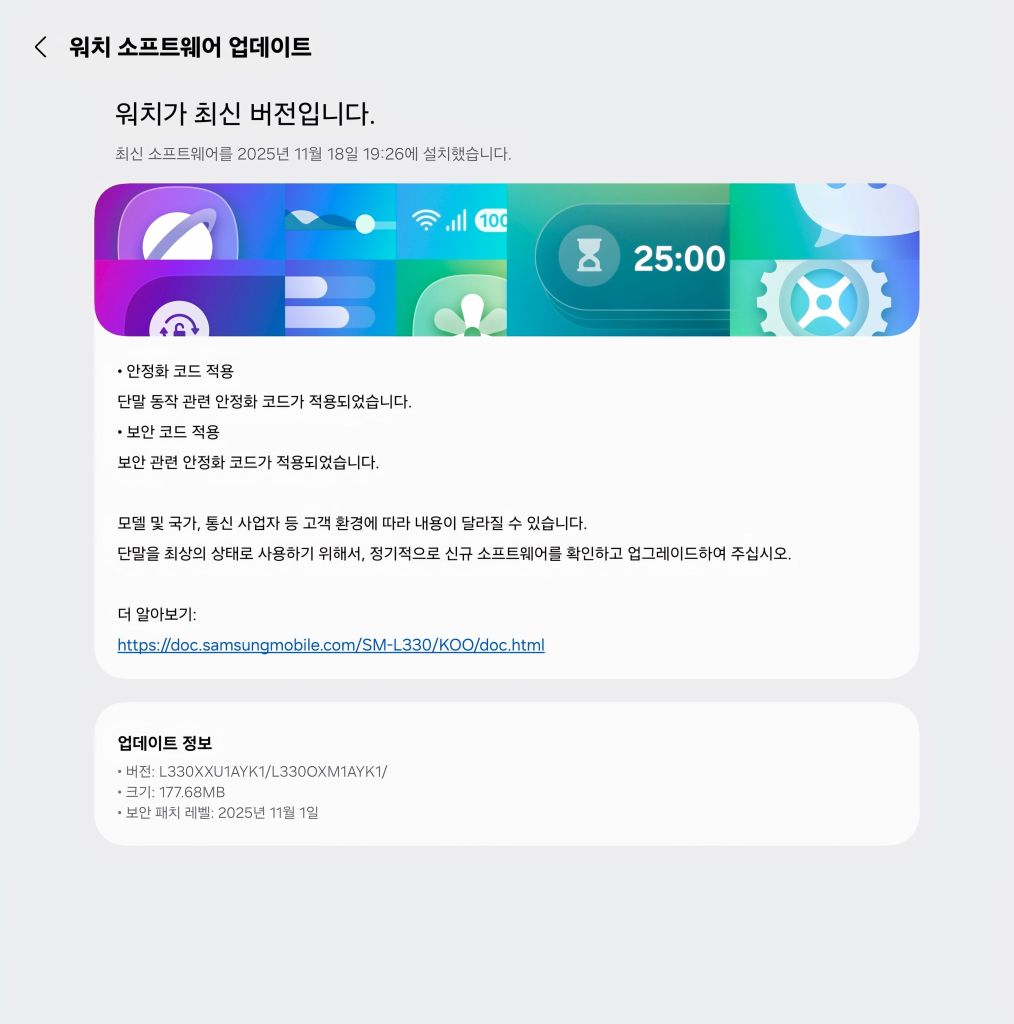
Samsung has recently began distributing the November 2025 security patch to the Galaxy Watch8 series. This is built on top of One UI 8.0 that uses Wear OS 6 as the base. This is to apply some stabilization code to the software, making sure that your watch runs faster and more stable than before.

Currently, this is only distributed to Korea, but other regions should get the update soon.

According to the latest data, we have found the following firmware versions released:

  • SM-L320: L320XXU1AYK1
  • SM-L330: L330XXU1AYK1

To obtain the update, follow these steps:

  1. Open the Wearable app
  2. Navigate to Watch settings > Watch software update
  3. Tap on Download and Install
  4. You should be able to see the update information. Verify the version with your device model posted above.
  5. Click on Download, let it download, and click on Install. Make sure that you download the update through Wi-Fi.

This update should take a short time to install. Make sure that you have the watch charged fully before initiating the update process to avoid interruptions. Back up your data in case the update went wrong. Don’t interrupt the update process, or you’ll experience problems later.

#Android #GalaxyWatch8 #news #November #OneUI8 #OneUI8Watch #OneUI80 #Patch #Samsung #SamsungGalaxyWatch8 #security #smartphone #Tablet #tablets #Tech #Technology #update #Watch8

Our projects welcome One UI 8!

Starting from today, we have finally set the support date for our official support of One UI 8 that was released for the Galaxy S25 series on September 15th. One UI 8 is an operating system that brings minor improvements in different areas, while introducing exciting new features, such as the adaptive lock screen clock.

We will begin supporting users who are using One UI 8 to support our projects, such as Nitrocid KS and BassBoom, until December 2nd, 2032. Our projects can now run on One UI 8, which is a big achievement for us, as we keep supporting our projects on Android.

Furthermore, we’d like to remind users who are still using One UI 6.x, which was released in 2023, that our support of this operating system version will cut off starting December 30th, 2027. This is to ensure that we keep going forward. You can still run our projects after this date, but all official support will end.

To update to One UI 8, make sure that you’re using an eligible device, such as Samsung Galaxy S25; Galaxy Z Fold6; and Galaxy Tab S10, before you check for updates. The rollout may vary, depending on the model and the country.

#Android #Android16 #AndroidB #AndroidBaklava #bassboom #news #nitrocid #NitrocidKernel #NitrocidKernelSimulator #NitrocidKS #NitrocidKS #oneUi #OneUI8 #OneUI80 #Samsung #smartphone #Tech #Technology #terminaux #update

One UI 8 allows you to see “Other files” in Storage Manager

One UI 8.0 introduces a new feature that allows you to see the “Other Files” that occupy your device’s storage in the Storage Manager, alongside photos, videos, and other categorized files. This allows you to free up some space to allow more data inside your device. You can access this menu through Settings > Device Care > Storage.

Once inside, you’ll be met with three categories: invisible backups, pending files, and uncategorized files.

Select any invisible backup, and you’ll be presented with an option to delete those backups. When editing a picture in your gallery app, you’ll notice that there are invisible backups being created for you to be able to revert to the original image, should you not like the edits being made after editing.

Pending files are the files that are pending processing. However, you’ll only be presented with an option to see the details of the selected file. If you select only one file, you’ll be given a path, just like below:

As for the uncategorized files, the files that are recognized by My Files but not yet categorized into anything will show up as “Other files”, therefore, those files are shown in the list.

However, a big disappointment is that when you select files, you’ll only be presented with an option to show the file details. Honestly, an option to delete files should have been included to save time, but it’s not implemented in this version. Therefore, you’ll have to spend time getting the paths to a file you want to delete using the only option that you have, called file info. Then, going to those paths to find the file before deleting it.

So, while this long-awaited feature has been finally implemented for general use, there are things that are missing, such as deletion of uncategorized files from this screen. We expect to see improvements in this area in One UI 8.5 or 9.0.

As for One UI 9.0 based on Android 17, the Galaxy Tab S8 won’t get the update as the upgrade cycle has been finally complete, with One UI 8.5 being the last update to get.

#Android #Android16 #AndroidB #AndroidBaklava #news #oneUi #OneUI8 #OneUI80 #Samsung #smartphone #Tech #Technology #update

State of Our Projects and One UI 8

Our projects currently support Android devices that are running at least Android 7 using the ARM64 processor, with our testing targets being Android 15. Samsung devices are the most compatible with our projects, as we are currently testing our projects in One UI 7.0.

Earlier, we have updated the BassBoom documentation to reflect the state of broken PulseAudio in One UI 6.1 or higher when it’s loaded without the required LD_PRELOAD environment variable to load the OpenSL library. We have tested our projects in the following environments:

  • One UI 5.1
  • One UI 5.1.1
  • One UI 6.0
  • One UI 6.1
  • One UI 6.1.1
  • One UI 7.0

For those who are running One UI 8 and are planning to run our projects, we are not providing official support for this version of One UI yet, as we are still making conductive tests. Once we officially confirm that our projects work flawlessly with One UI 8, we will begin providing support for Android 16 users.

For devices other than Samsung (Google Pixel, Huawei, Xiaomi, etc.), we are not officially providing support, as each manufacturer could have different mechanisms of the Android operation, and what works on Samsung devices might not work on others.

BONUS: If you can’t run or build our .NET projects on Android due to signal 9, unlock developer options (About phone/tablet > Software information > tap on Build Number 7 times), then go to Developer Options, and turn on “Disable Child Process Restrictions.”

#Android #Android16 #AndroidB #bassboom #KernelSimulator #KS #news #nitrocid #NitrocidKS #oneUi #OneUI8 #OneUI80 #Samsung #smartphone #Tech #Technology #update

Samsung Galaxy Tab S8 gets the One UI 8 update globally!

We are excited to announce that starting from today, global users can now download the One UI 8 update to their Galaxy Tab S8 tablets as Samsung has finally released this exciting version of One UI. Your Galaxy has now become more powerful as One UI 8 brings more powerful features.

This is going to be the last platform update for the tablet series, but One UI 8.5 will make it to your tablet next year. One UI 9.0 or later won’t be released to the Galaxy Tab S8.

Taken from our unit

The firmware information states:

To obtain the update, perform the following steps:

  1. Open the Settings app
  2. Navigate to Software Updates
  3. Tap on Download and Install
  4. Wait until you see One UI 8 at the top of the page, then tap on Download
  5. Wait for the download to complete, then tap on Install

After you perform the above steps, your tablet will be running One UI 8 based on Android 16, and you can enjoy its new features and with many improvements on place. This makes sure that your experience gets improved.

If you still didn’t get the update for your device, wait for a few days or a few weeks, then check for updates again. If you still see “Your software is up to date,” this means that the update didn’t reach your region yet.

Note that the update process may take 15 to 20 minutes, and this can vary from device to device. The download process may incur extra charges if you’re using the cellular network as the update size is around 5 GB, depending on the device, so we recommend downloading it through Wi-Fi. Never interrupt the update process in any way, or problems may occur. Make sure that your tablet gets charged before you initiate the installation process.

#Android #Android16 #AndroidB #AndroidBaklava #GalaxyTabS8 #GalaxyTabS8Series #GalaxyTabS8Ultra #news #oneUi #OneUI8 #OneUI80 #Samsung #SamsungGalaxyTabS8 #SamsungGalaxyTabS8Series #SamsungGalaxyTabS8Ultra #smartphone #TabS8 #TabS8Series #TabS8Ultra #Tech #Technology

Galaxy Watch5 One UI 8 Watch Beta Program didn’t start yet

It’s been months since Samsung had started the beta program for the One UI 8 Watch for the Galaxy Watch7 and Watch Ultra on June 30th. Since then, the stable release had landed to the Galaxy Watch Ultra as the first smartwatch to get the update, on the same day that Galaxy Watch8 was supposed to be released. Since then, Galaxy Watch7 users had to wait until October 13th to get their stable update, while the Galaxy Watch6 users were waiting until September 24th to get their first beta update.

It has been reported that the Galaxy Watch5’s One UI 8 Watch beta versions were being spotted, starting from August. Since then, we’re seeing new versions flowing slowly, but we haven’t seen Samsung release the first beta of the Galaxy Watch5’s One UI 8 Watch update. So, what’s happening?

According to the latest firmware information, at the time of writing, we found that the three smartwatch models in the Galaxy Watch5 series are all currently at the following versions:

  • SM-R920: R920XXU1ZYJ5 [KOO]
  • SM-R910: R910XXU1ZYJ5 [KOO]
  • SM-R900: R900XXU1ZYJ5 [KOO]

Galaxy Watch5 LTE series with an active T-Mobile plan in the US will be able to join the beta program.

This will be the third upgrade for the Galaxy Watch5 series, out of the promised four generations of OS upgrades. You’ll be able to identify the stable release with build “DY??“.

We will let you know as soon as Samsung releases the One UI 8 Watch Beta for Galaxy Watch5. However, you’ll miss new features that are introduced in the Galaxy Watch8 smartwatch series.

As for the Galaxy Watch6, there is currently no information as to whether there will be the fourth beta or the stable release.

#Android #GalaxyWatch5 #news #oneUi #OneUI8 #OneUI8Watch #OneUI80 #Samsung #SamsungGalaxyWatch5 #Tech #Technology #update #Watch5

Samsung Galaxy Tab S8 gets the One UI 8 update!

We are excited to announce that starting from today, users can now download the One UI 8 update to their Galaxy Tab S8 tablets as Samsung has finally released this exciting version of One UI. Your Galaxy has now become more powerful as One UI 8 brings more powerful features.

This is going to be the last platform update for the tablet series, but One UI 8.5 will make it to your tablet next year. One UI 9.0 or later won’t be released to the Galaxy Tab S8.

The firmware information states:

  • Galaxy Tab S8: EYJ4 / JYJ4 [KOO Wi-Fi, KOO 5G]
  • Galaxy Tab S8+: EYJ4 / JYJ4 [KOO Wi-Fi, KOO 5G]
  • Galaxy Tab S8 Ultra: EYJ4 / JYJ4 [KOO Wi-Fi, KOO 5G]

To obtain the update, perform the following steps:

  1. Open the Settings app
  2. Navigate to Software Updates
  3. Tap on Download and Install
  4. Wait until you see One UI 8 at the top of the page, then tap on Download
  5. Wait for the download to complete, then tap on Install

After you perform the above steps, your tablet will be running One UI 8 based on Android 16, and you can enjoy its new features and with many improvements on place. This makes sure that your experience gets improved.

If you still didn’t get the update for your device, wait for a few days or a few weeks, then check for updates again. If you still see “Your software is up to date,” this means that the update didn’t reach your region yet.

Note that the update process may take 15 to 20 minutes, and this can vary from device to device. The download process may incur extra charges if you’re using the cellular network as the update size is around 5 GB, depending on the device, so we recommend downloading it through Wi-Fi. Never interrupt the update process in any way, or problems may occur. Make sure that your tablet gets charged before you initiate the installation process.

#Android #Android16 #AndroidB #AndroidBaklava #GalaxyTabS8 #GalaxyTabS8Series #GalaxyTabS8Ultra #news #oneUi #OneUI8 #OneUI80 #Samsung #SamsungGalaxyTabS8 #SamsungGalaxyTabS8Series #SamsungGalaxyTabS8Ultra #smartphone #TabS8 #TabS8Series #TabS8Ultra #Tech #Technology

Samsung Galaxy S24 and S23 gets the One UI 8 update after rollout pause in Korea!

We are excited to announce that starting from today, users in Korea can now download the One UI 8 update to their Galaxy S24 and S23 smartphones again after the rollout pause that happened on October 17th and 21st. as Samsung has finally released this exciting version of One UI. Your Galaxy has now become more powerful as One UI 8 brings more powerful features.

For those who already installed the One UI 8.0 update, you should see a normal security update, like in the pictures below, that will upgrade your phone to the October 2025 security patch.

Please note that this update is only available in Korea. Other countries will get it soon.

The firmware information states:

  • Galaxy S24: CYJ3 [KOO]
  • Galaxy S24+: CYJ3 [KOO]
  • Galaxy S24 Ultra: CYJ3 [KOO]
  • Galaxy S23: EYJ7 [KOO]
  • Galaxy S23+: EYJ7 [KOO]
  • Galaxy S23 Ultra: EYJ7 [KOO]

To obtain the update, perform the following steps:

  1. Open the Settings app
  2. Navigate to Software Updates
  3. Tap on Download and Install
  4. Wait until you see One UI 8 at the top of the page, or the security update page, then tap on Download
  5. Wait for the download to complete, then tap on Install

After you perform the above steps, your phone will be running One UI 8 based on Android 16, and you can enjoy its new features and with many improvements on place. This makes sure that your experience gets improved.

If you still didn’t get the update for your device, wait for a few days or a few weeks, then check for updates again. If you still see “Your software is up to date,” this means that the update didn’t reach your region yet.

Note that the update process may take 15 to 20 minutes, and this can vary from device to device. The download process may incur extra charges if you’re using the cellular network as the update size is around 5 GB, depending on the device, so we recommend downloading it through Wi-Fi. Never interrupt the update process in any way, or problems may occur. Make sure that your phone gets charged before you initiate the installation process.

#Android #Android16 #AndroidB #AndroidBaklava #GalaxyS24 #GalaxyS24Series #GalaxyS24Ultra #news #oneUi #OneUI8 #OneUI80 #S24 #S24Series #S24Ultra #S24U #Samsung #SamsungGalaxyS24 #SamsungGalaxyS24Series #SamsungGalaxyS24Ultra #smartphone #Tech #Technology #update

Samsung Galaxy S21 FE gets the One UI 8 update!

We are excited to announce that starting from today, users can now download the One UI 8 update to their Galaxy S21 FE smartphones as Samsung has finally released this exciting version of One UI. Vietnam and Thailand are the first to get the One UI 8 update according to Mohammed Khatri. Your Galaxy has now become more powerful as One UI 8 brings more powerful features.

Further proof in Samsung Members forums illustrates One UI 8 update being released to their country.

The firmware information states:

  • Galaxy S21 FE: HYJ2 [XXV, THL]

To obtain the update, perform the following steps:

  1. Open the Settings app
  2. Navigate to Software Updates
  3. Tap on Download and Install
  4. Wait until you see One UI 8 at the top of the page, then tap on Download
  5. Wait for the download to complete, then tap on Install

After you perform the above steps, your phone will be running One UI 8 based on Android 16, and you can enjoy its new features and with many improvements on place. This makes sure that your experience gets improved.

If you still didn’t get the update for your device, wait for a few days or a few weeks, then check for updates again. If you still see “Your software is up to date,” this means that the update didn’t reach your region yet.

Note that the update process may take 15 to 20 minutes, and this can vary from device to device. The download process may incur extra charges if you’re using the cellular network as the update size is around 5 GB, depending on the device, so we recommend downloading it through Wi-Fi. Never interrupt the update process in any way, or problems may occur. Make sure that your phone gets charged before you initiate the installation process.

#Android #Android16 #AndroidB #AndroidBaklava #GalaxyS21FE #news #oneUi #OneUI8 #OneUI80 #S21FE #Samsung #SamsungGalaxyS21FE #smartphone #Tech #Technology #update

Samsung Galaxy Tab S6 Lite (2024) gets the One UI 8 update!

We are excited to announce that users can now download the One UI 8 update to their Galaxy Tab S6 Lite (2024) tablets as Samsung has finally released this exciting version of One UI, and this has been spotted in Vietnam, Malaysia, Thailand, and Phillipines according to Mohammed Khatri. Your Galaxy has now become more powerful as One UI 8 brings more powerful features.

As for those who are using the Galaxy Tab S8 and Tab S9 FE, you’ll have to wait for a week or two before you’ll be able to update to One UI 8.

Via SamLover

The firmware information states:

  • Galaxy Tab S6 Lite (2024): CYJ5

To obtain the update, perform the following steps:

  1. Open the Settings app
  2. Navigate to Software Updates
  3. Tap on Download and Install
  4. Wait until you see One UI 8 at the top of the page, then tap on Download
  5. Wait for the download to complete, then tap on Install

After you perform the above steps, your tablet will be running One UI 8 based on Android 16, and you can enjoy its new features and with many improvements on place. This makes sure that your experience gets improved.

If you still didn’t get the update for your device, wait for a few days or a few weeks, then check for updates again. If you still see “Your software is up to date,” this means that the update didn’t reach your region yet.

Note that the update process may take 15 to 20 minutes, and this can vary from device to device. The download process may incur extra charges if you’re using the cellular network as the update size is around 5 GB, depending on the device, so we recommend downloading it through Wi-Fi. Never interrupt the update process in any way, or problems may occur. Make sure that your tablet gets charged before you initiate the installation process.

#Android #Android16 #AndroidB #AndroidBaklava #GalaxyTabS6Lite #news #oneUi #OneUI8 #OneUI80 #Samsung #SamsungGalaxyTabS6Lite #smartphone #TabS6Lite #Tech #Technology

Samsung will release One UI 8 for the Galaxy Tab S8 soon!

Samsung has already pushed the Galaxy Tab S9 update this week that updates the tablet to One UI 8 based on Android 16 released this year. Meanwhile, the Galaxy Tab S8 is yet to receive the update, because the Brazilian timeline clearly said that from October 16th, the tablet was planned to receive the update.

One UI 8 will make it to the Galaxy Tab S8 series in the coming weeks, and the earliest possible date (best case) is the week of October 23rd, since the update wasn’t pushed in the week of October 16th. In the worst cases, the update could be pushed to the Tab S8 in early November, should delays occur.

One UI 8.0 for the Galaxy Tab S9, unfortunately, doesn’t include the Now Brief feature, so the Galaxy Tab S8’s One UI 8 update won’t provide you Now Brief. This is to align with the capabilities of the devices while maintaining stability of the update. This means that if you want to use Now Brief, you’ll either have to obtain a Galaxy Tab S11, or update your existing Galaxy Tab S10 to One UI 8.

The Galaxy Tab S8, given its February 2022 release with the Galaxy Unpacked 2022 event, has been provided three generational upgrades: One UI 5.0 on November and December 2022, One UI 6.0 on December 2023 and February 2024, and One UI 7.0 on April and May 2025. Based on the longevity plan that was announced in the same event, Galaxy Tab S8 and other flagship devices released before 2024 are eligible for four generational upgrades and five years of security updates. Thus, One UI 8.0 is considered to be the last generational upgrade for this tablet series, and will make it to the Galaxy Tab S8 soon.

As for One UI 8.5, which will be unveiled in the first quarter of 2026, the Galaxy Tab S8 is eligible for this update as it brings major redesign in applications (based on recent leaks) inspired by the Liquid Glass design seen on iOS 26, released with the iPhone 17 series.

To obtain the update once it gets released, perform the following steps:

  1. Open the Settings app
  2. Navigate to Software Updates
  3. Tap on Download and Install
  4. Wait until you see One UI 8 at the top of the page, then tap on Download
  5. Wait for the download to complete, then tap on Install

After you perform the above steps, your tablet will be running One UI 8 based on Android 16, and you can enjoy its new features and with many improvements on place. This makes sure that your experience gets improved.

If you still didn’t get the update for your device, wait for a few days or a few weeks, then check for updates again. If you still see “Your software is up to date,” this means that the update didn’t reach your region yet.

Note that the update process may take 15 to 20 minutes, and this can vary from device to device. The download process may incur extra charges if you’re using the cellular network as the update size is around 5 GB, depending on the device, so we recommend downloading it through Wi-Fi. Never interrupt the update process in any way, or problems may occur. Make sure that your tablet gets charged before you initiate the installation process.

#Android #GalaxyTabS8 #GalaxyTabS8Series #GalaxyTabS8Ultra #news #oneUi #OneUI8 #OneUI80 #OneUI85 #S8 #SamsuhgGalaxyTabS8_ #Samsung #SamsungGalaxyTabS8 #SamsungGalaxyTabS8Series #SamsungGalaxyTabS8Ultra #smartphone #TabS8 #TabS8Series #TabS8Ultra #Tablet #Tech #Technology #update

Client Info

Server: https://mastodon.social
Version: 2025.07
Repository: https://github.com/cyevgeniy/lmst